Google Docs vs Microsoft Word: Which Is Better in 2026?
Google Docs or Microsoft Word? Compare collaboration, formatting, privacy, security, and offline editing to see which document editor is right for your workflow.

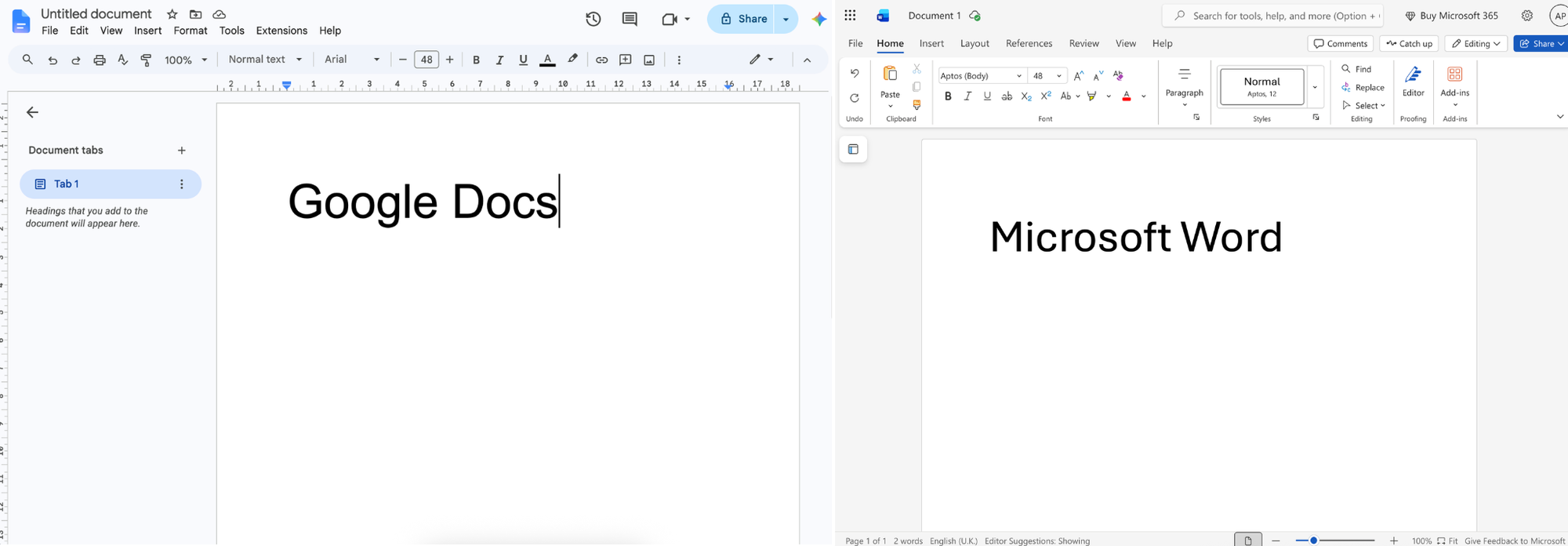
Microsoft Word and Google Docs are the two most popular word processors in the world, and most of us just use whichever one landed in front of us at school or work. They look similar, but they behave very differently the moment you sit down to write.
This is a straight comparison of how they stack up on writing, collaborating, formatting, working offline, and what each one does with your files. You'll see where each one wins and where it falls short, plus learn about a strong third option worth a try.
Ease of use and access
Google Docs is the easier one to live with. Nothing to install, it opens in any browser on any device, it autosaves constantly, and the interface stays out of your way. Word's desktop app is far more capable but also busier, with tabs and ribbons you'll mostly ignore, and you're tied to the machine it's installed on. The free Word for the web is lighter but noticeably stripped back. If you want to open any laptop and just start typing, Google Docs wins this easily.
Collaboration
Google Docs basically invented modern collaboration: live cursors, inline comments, suggestions, everyone in the same document at once with zero setup. Word has caught up through OneDrive, and co-authoring works fine now, but it's smoothest when everyone is signed into Microsoft and inside the same organisation. Share with someone outside it and things get fiddly fast. For real-time work with other people, Google Docs wins that one.
Formatting and long documents
This is Word's home turf. Precise layout, advanced styles, references, footnotes, captions, mail merge, and it chews through enormous files without slowing down. If you're writing a thesis, a book manuscript, a legal contract or anything where exact formatting matters, Word still sets the standard. Google Docs handles the basics nicely and add-ons cover some gaps, but it isn't built for pixel-perfect design. Word takes this one comfortably.
Working offline
Word wins offline, but only on the desktop app, not the web version. The installed app works fully offline with no setup. Google Docs can go offline too, but it's fiddly: you can't just open the page on a plane and start typing. It only works in Chrome or Edge, with the Google Docs Offline extension installed, and only for documents you enabled beforehand. Word for the web is no better here, like most browser apps it really wants a connection. So if you often write without internet, the Word desktop app is the most reliable option.
Compatibility
The .docx format is still what the world runs on. Almost everything opens it, and if the people you work with use Word, staying in Word avoids the little formatting glitches that creep in whenever files bounce between the two apps. Docs opens and edits Word files perfectly well, but conversion isn't always flawless, especially with heavy formatting. If compatibility is your priority, Word has the edge.
What it costs
Google Docs is free with a Google account. Word is free in your browser, but the full desktop app costs money: a Microsoft 365 plan (around $70 to $100 a year) or a one-off licence (around $150). So for most people, Docs is free and Word isn't, unless you stick to the lighter web version.
Privacy and security
Google Docs always lives on Google's servers and isn't end-to-end encrypted, so the privacy you get is a policy promise, not a technical guarantee: Google can read and scan your content, and the terms covering what it does with it can change anytime. Word can be more private if you keep files on your own machine with the desktop app, but the moment you sync to OneDrive, collaborate, or use the browser, it's on Microsoft's servers under the same deal: not encrypted, with encryption keys held by them. So for anything you'd rather keep yours, a manuscript, a contract, an early idea, both leave the door open the moment you go cloud.
A privacy-focussed third option: dDocs
dDocs is a free, open source editor that works like Google Docs but keeps your writing private. Unlike Google Docs and Word, everything is end-to-end encrypted by default on your device, so only the people you share with can read it. Not even Fileverse, the team behind it, can see your files, the platform simply doesn't have the keys.
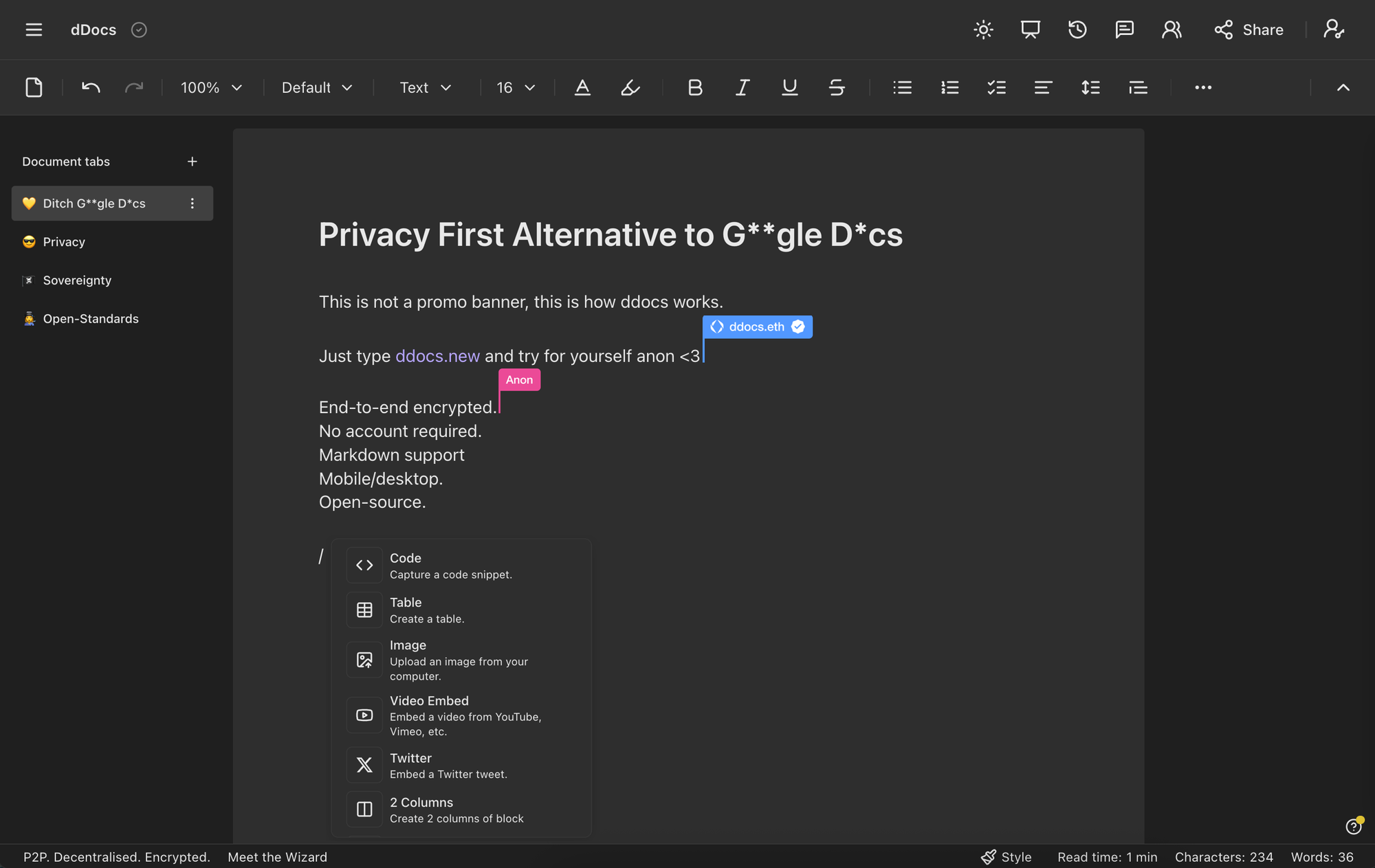
Docs and Word both let you share a link to collaborate, but only by keeping your document readable on their servers, whereas dDocs stays end-to-end encrypted even when people are working on a doc together. Access permissions are managed using zero-knowledge cryptography, allowing collaborators to prove access rights without exposing their identity.
Documents are local-first or optionally stored on decentralized networks (IPFS) for cross device syncing and sharing, rather than stored on a single company's servers. The editor is fully open source on GitHub, so you can verify rather than trust the privacy claims.
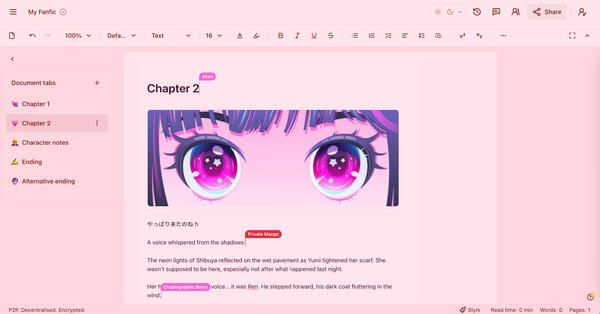
Beyond privacy, dDocs includes the features most people expect from a modern editor: real-time collaboration, comments, suggestions, web publishing, and support for open formats. dDocs also handles offline better than either web editor: open ddocs.new with no internet connection and your existing documents are right there to carry on editing, without any extension or advanced setup needed. Unlike Google Docs and Microsoft Word, dDocs does not force AI features into the editor and instead lets users optionally connect their own local AI models.
It won't replace Word for heavy desktop formatting. But for writing, collaboration, and sharing documents online, dDocs offers something neither Google Docs nor Word provides by default: private collaboration where you remain in control of your data.
You don't need an account to start, you can just open ddocs.new and begin writing.
Google Docs vs Word vs dDocs at a glance
| Feature | Google Docs | Microsoft Word | dDocs |
|---|---|---|---|
| Real-time collaboration | Yes | Yes (OneDrive) | Yes |
| End-to-end encryption | No | No | Yes |
| Zero-knowledge access | No | No | Yes |
| AI features | Gemini, default on | Copilot, default on | Optional, runs locally |
| Open source | No | No | Yes |
| Advanced formatting | Good | Excellent | Good |
| Offline editing | Limited | Yes (desktop) | Yes |
| Data ownership | Limited | Limited | Yes |
| Account required | Yes | Yes | No |
Final Verdict
- Google Docs if you want free, effortless collaboration.
- Microsoft Word if you need serious formatting, or full .docx compatibility.
- dDocs if you want Google Docs-style simplicity with full privacy by design.
Google Docs is a good choice for simple browser-based collaboration, Microsoft Word remains the leader for advanced formatting and enterprise workflows, while dDocs is the best for privacy-first collaboration through end-to-end encryption, zero-knowledge access permissions, and open-source infrastructure.
Quick Answers
Is Google Docs better than Microsoft Word?
Google Docs is generally better for real-time collaboration and browser-based editing, while Microsoft Word remains stronger for advanced formatting and professional document workflows.
What is the biggest difference between Google Docs and Microsoft Word?
Google Docs is cloud-first and designed around collaboration, whereas Microsoft Word offers more powerful formatting and document layout tools.
Which is better for privacy?
Neither Google Docs nor Microsoft Word provides end-to-end encrypted collaboration by default. Privacy-focussed alternatives such as dDocs take a different approach by encrypting documents before they leave your device.
What is the best alternative to Google Docs?
Microsoft Word is strongest for formatting, while privacy-focussed options such as dDocs offer stronger privacy protections and greater control over your data.